User Guide
INcontact is a desktop app targeted towards early startup founders for managing business contacts, optimized for use via a Command Line Interface (CLI) while still having the benefits of a Graphical User Interface (GUI). If you can type fast, INcontact can get your contact management tasks done faster than traditional GUI apps.
- Quick start
-
Features
- Viewing help :
help - Adding a person:
add - Listing all persons :
list - Editing a person :
edit - Deleting a person :
delete - Clearing all entries :
clear - Adding a relationship:
addRelationship - Deleting a relationship:
deleteRelationship - Adding a relationship tag:
addRelationshipTag - Deleting a relationship tag:
deleteRelationshipTag - Adding an event:
addEvent - Deleting an event:
deleteEvent - Updating an event description:
updateEventDesc - Updating an event time:
updateEventDate - Updating an event location:
updateEventLoc - Adding an event tag:
addEventTag - Deleting an event tag:
deleteEventTag - Adding an event contact:
addEventContact - Deleting an event contact:
deleteEventContact - Locating persons by name:
findName - Locating persons by phone:
findPhone - Locating persons by email:
findEmail - Locating persons by address:
findAddress - Locating persons by social:
findSocial - Locating persons by relationship:
findRelationship - Locating persons by tag:
findTag - Sorting the Address Book:
sort - Re-executing Commands:
redo - Listing the Command History:
redoList - Exiting the program :
exit - Saving the data
- Editing the data file
- Find and Sort Interaction
- Viewing help :
- FAQ
- Known issues
- Planned enhancements
- Command summary
Quick start
-
Ensure that you have Java 17 or above installed. If Java is not installed or the
javacommand is not available in the command line, follow the Java installation guide.
Mac users: Ensure you have installed the precise Java version prescribed in the Java installation guide for Mac. -
Download the latest
INcontact.jarfile. -
Move
INcontact.jarto the folder you want to use as the home folder for INcontact. The home folder contains
 INcontact.jarand user data. -
Open the home folder in a command terminal and run INcontact with
java -jar INcontact.jar. Opening a folder in a terminalRight-click the folder and select
open in terminalornew terminal at folder.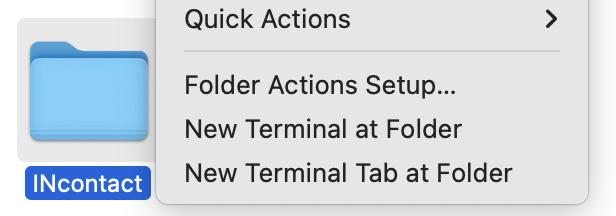
If this is not available, you can use the
cd(change directory) command. Open a terminal, typecdfollowed by a space, then drag the home folder into the terminal. The path to the home folder should appear, and you can press enter.If this does not work, you can specify the path manually, e.g.
cd /Users/johndoe/INcontact -
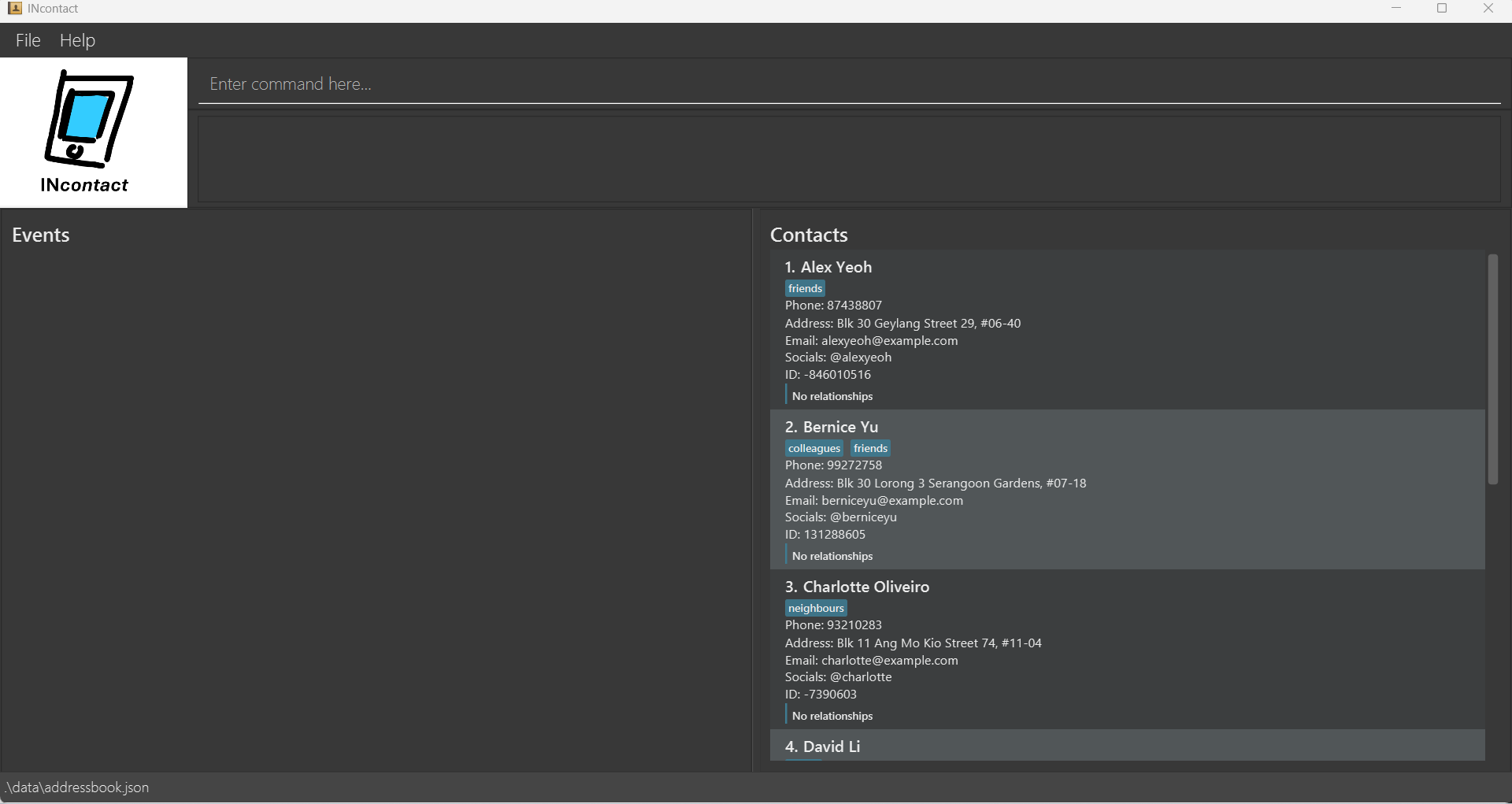
A window similar to the below should appear in a few seconds. Note how the app contains some sample data.
-
Type the command in the command box and press Enter to execute it. e.g. typing
helpand pressing Enter will open the help window.
Some example commands you can try:-
list: Lists all contacts. -
add n/John Doe p/98765432 e/johnd@example.com a/John street, block 123, #01-01: Adds a contact namedJohn Doeto the Address Book. -
delete 3: Deletes the 3rd contact shown in the current list. -
clear: Deletes all contacts. -
exit: Exits the app.
-
-
Refer to the Features below for details of each command.
Features
Notes about the command format:
-
Words in
UPPER_CASEare the parameters to be supplied by the user.
e.g. inadd n/NAME,NAMEis a parameter which can be used asadd n/John Doe. -
Items in square brackets are optional.
e.gn/NAME [t/TAG]can be used asn/John Doe t/friendor asn/John Doe. -
Items with
… after them can be used multiple times including zero times.
e.g.[t/TAG]…can be used ast/friend,t/friend t/familyetc. -
Parameters can be in any order.
e.g. if the command specifiesn/NAME p/PHONE_NUMBER,p/PHONE_NUMBER n/NAMEis also acceptable. -
Extraneous parameters for commands that do not take in parameters (such as
help,list,exitandclear) will be ignored.
e.g. if the command specifieshelp 123, it will be interpreted ashelp. -
If you are using a PDF version of this document, be careful when copying and pasting commands that span multiple lines as space characters surrounding line-breaks may be omitted when copied over to the application.
Viewing help : help
Shows a message explaning how to access the help page.
Format: help
Example:
-
help
Adding a person: add
Adds a person to INcontact. Duplicates are allowed.
Format: add n/NAME [p/PHONE_NUMBER] [e/EMAIL] [a/ADDRESS] [s/SOCIAL]... [t/TAG]...
 Tip:
A person can have any number of tags/socials (including 0).
Tip:
A person can have any number of tags/socials (including 0). If person have no phone, email or address, system would indicate as a “~” instead.
Example:
add n/John Doe p/98765432 e/johnd@example.com a/John street, block 123, #01-01 s/@social1 s/@social2 t/Investoradd n/Betsy Crowe t/friend e/betsycrowe@example.com a/Newgate Prison p/1234567 t/criminal-
add n/Caroly Wilcox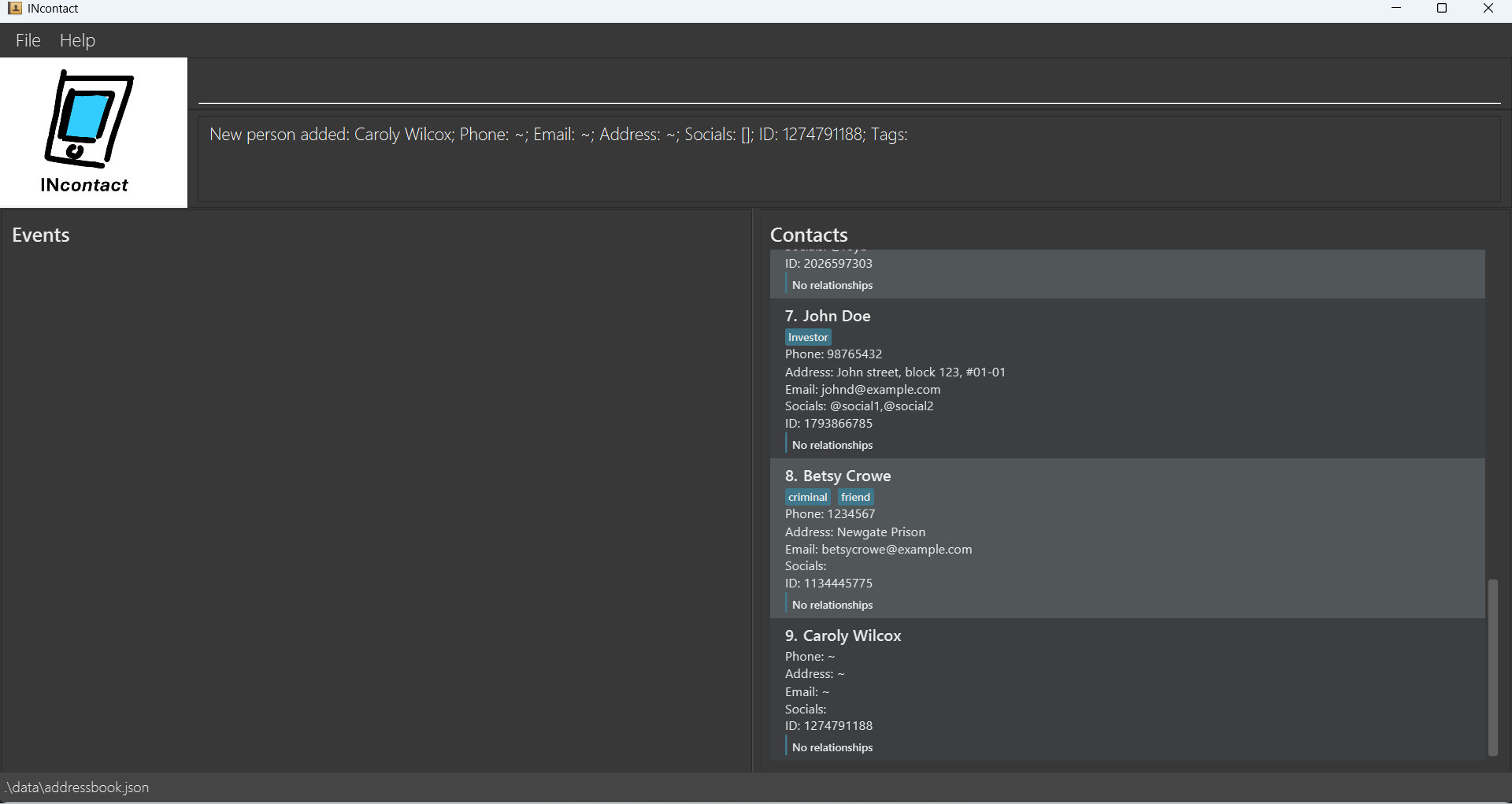
Listing all persons : list
Shows a list of all persons in INcontact.
Format: list
Example:
-
list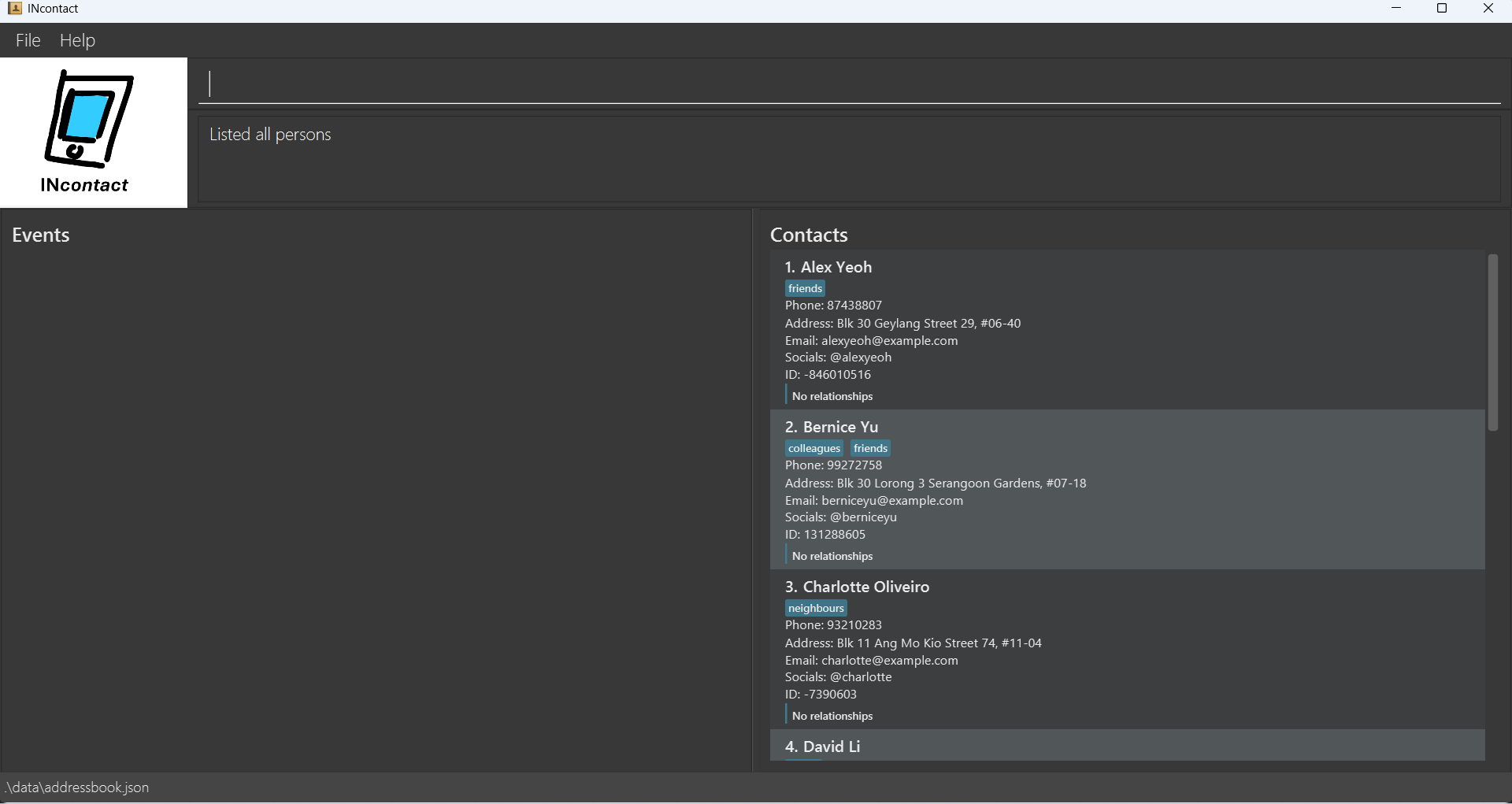
Editing a person : edit
Edits an existing person in INcontact.
Format: edit INDEX [n/NAME] [p/PHONE_NUMBER] [e/EMAIL] [a/ADDRESS] [s/SOCIAL]... [t/TAG]...
- Edits the person at the specified
INDEX. The index refers to the index number shown in the displayed person list. The index must be a positive integer 1, 2, 3, … - At least one of the optional fields must be provided.
- Existing values will be updated to the input values.
- When editing tags, the existing tags of the person will be removed i.e adding of tags is not cumulative.
- You can remove all the person’s tags/socials by typing
t//s/without specifying any tags/socials respectively after it.
Example:
-
edit 1 p/91234567 e/johndoe@example.comEdits the phone number and email address of the 1st person to be91234567andjohndoe@example.comrespectively. -
edit 2 n/Betsy Crower t/Edits the name of the 2nd person to beBetsy Crowerand clears all existing tags. edit 1 p/91234567 s/@john-
edit 1 s/@elmoEdits the socials of the 1st person to be@elmo.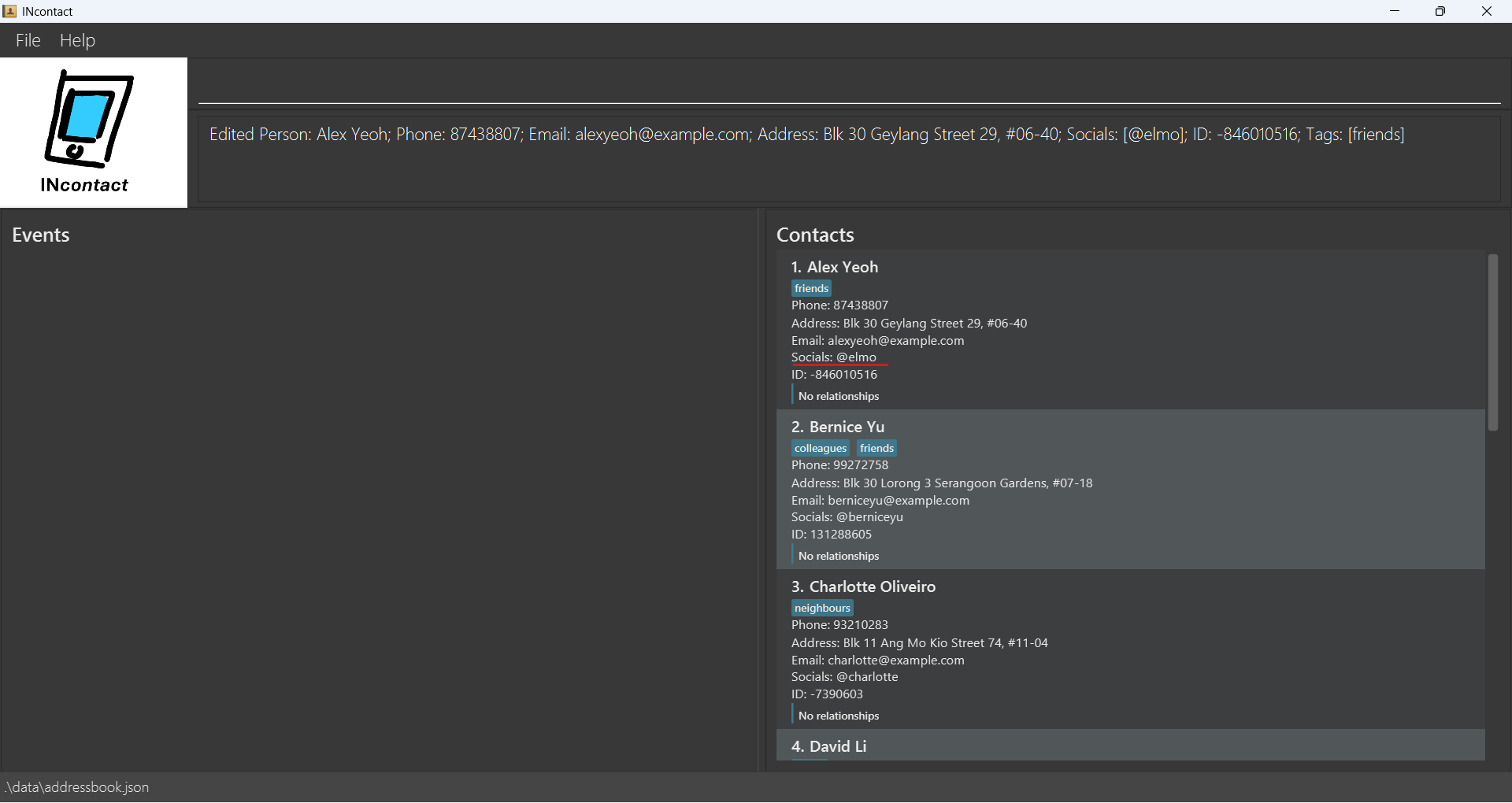
Deleting a person : delete
Deletes the specified person from INcontact.
Format: delete INDEX
- Deletes the person at the specified
INDEX. - The index refers to the index number shown in the displayed person list.
- The index must be a positive integer 1, 2, 3, …
Example:
-
listfollowed bydelete 2deletes the 2nd person in INcontact. -
findName Betsyfollowed bydelete 1deletes the 1st person in the results of thefindNamecommand.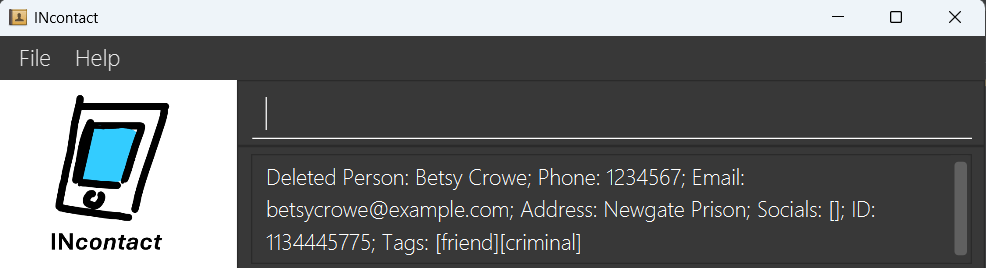
Clearing all entries : clear
Clears all entries from INcontact.
Format: clear
Example:
-
clear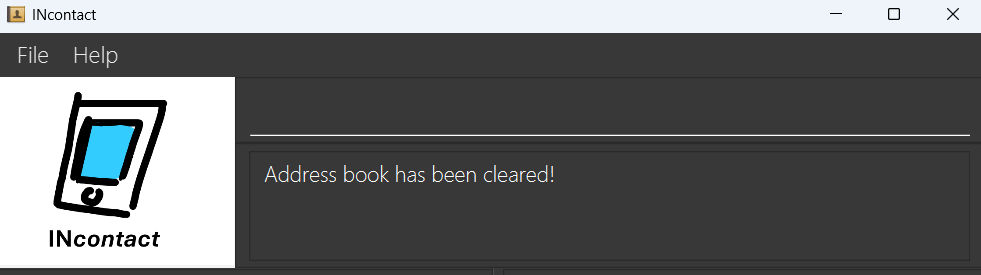
Adding a relationship: addRelationship
Adds a relationship between contacts to INcontact. You must specify both a forward and reverse name for this relationship.
Format: addRelationship u/USER_ID_1 u/USER_ID_2 fn/FORWARD_NAME rn/REVERSE_NAME [t/TAG]...
Example:
-
addRelationship u/-846010516 u/131288605 fn/Boss of rn/Reports to t/Work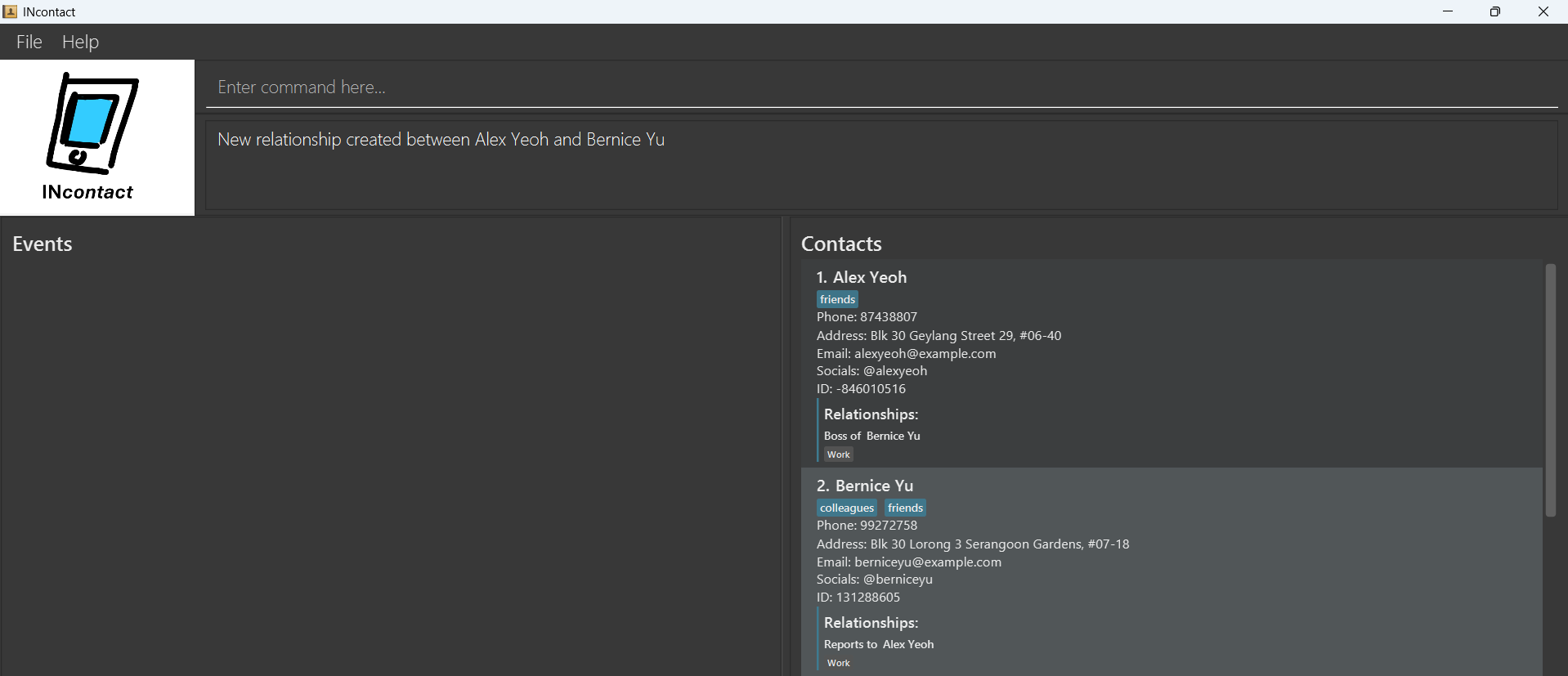
Deleting a relationship: deleteRelationship
Deletes a relationship from INcontact. Either the forward or reverse name of the relationship will suffice.
Format: deleteRelationship u/USER_ID_1 u/USER_ID_2 n/FORWARD_NAME_OR_REVERSE_NAME
Example:
-
deleteRelationship u/-846010516 u/131288605 n/Boss of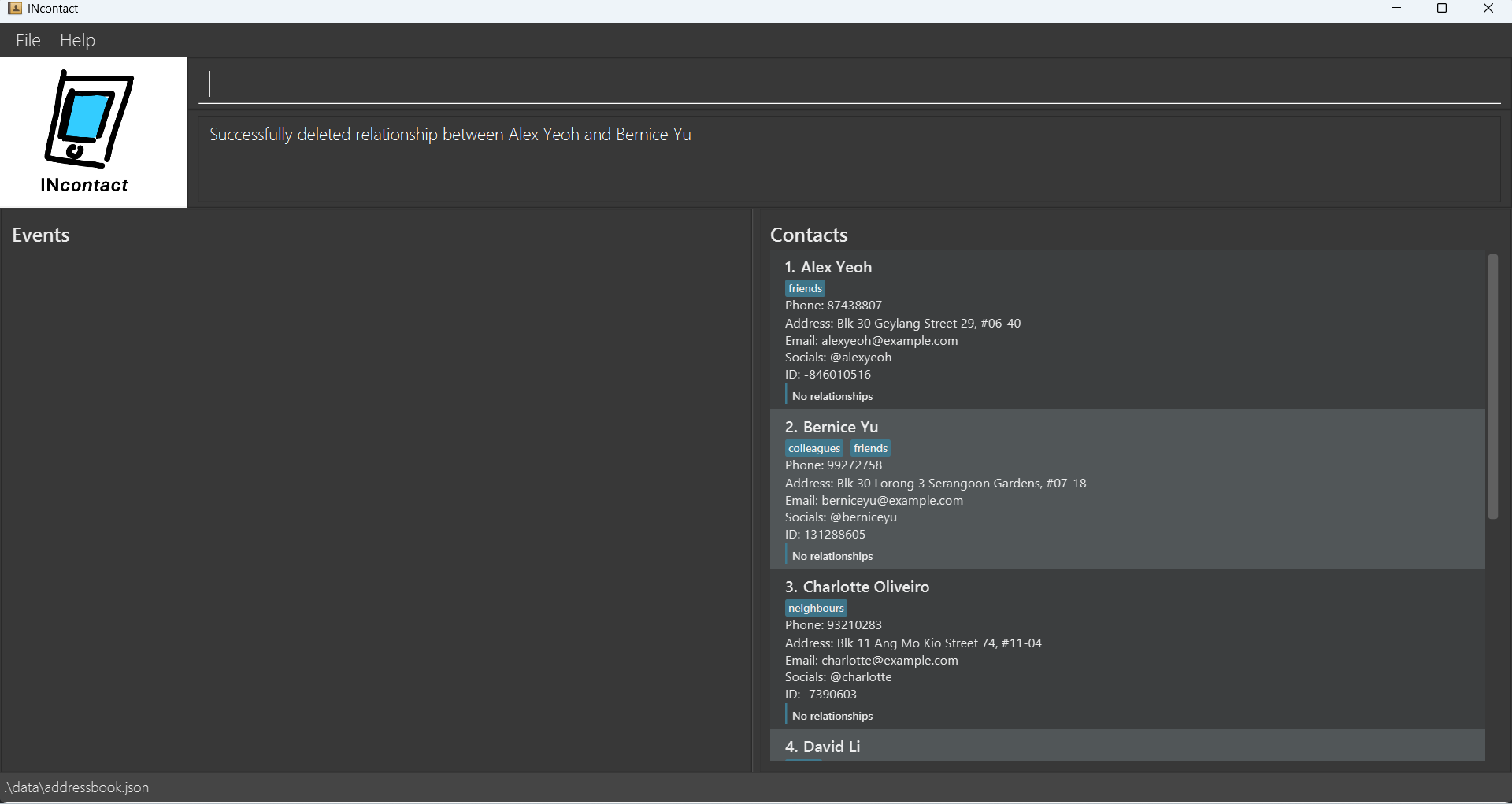
Adding a relationship tag: addRelationshipTag
Adds a relationship tag to a relationship.
Tip:
Ensure that a relationship between the two parties exists first.
Format: addRelationshipTag u/USER_ID_1 u/USER_ID_2 n/FORWARD_NAME_OR_REVERSE_NAME t/TAG
Example:
-
addRelationshipTag u/-846010516 u/131288605 n/Boss of t/partners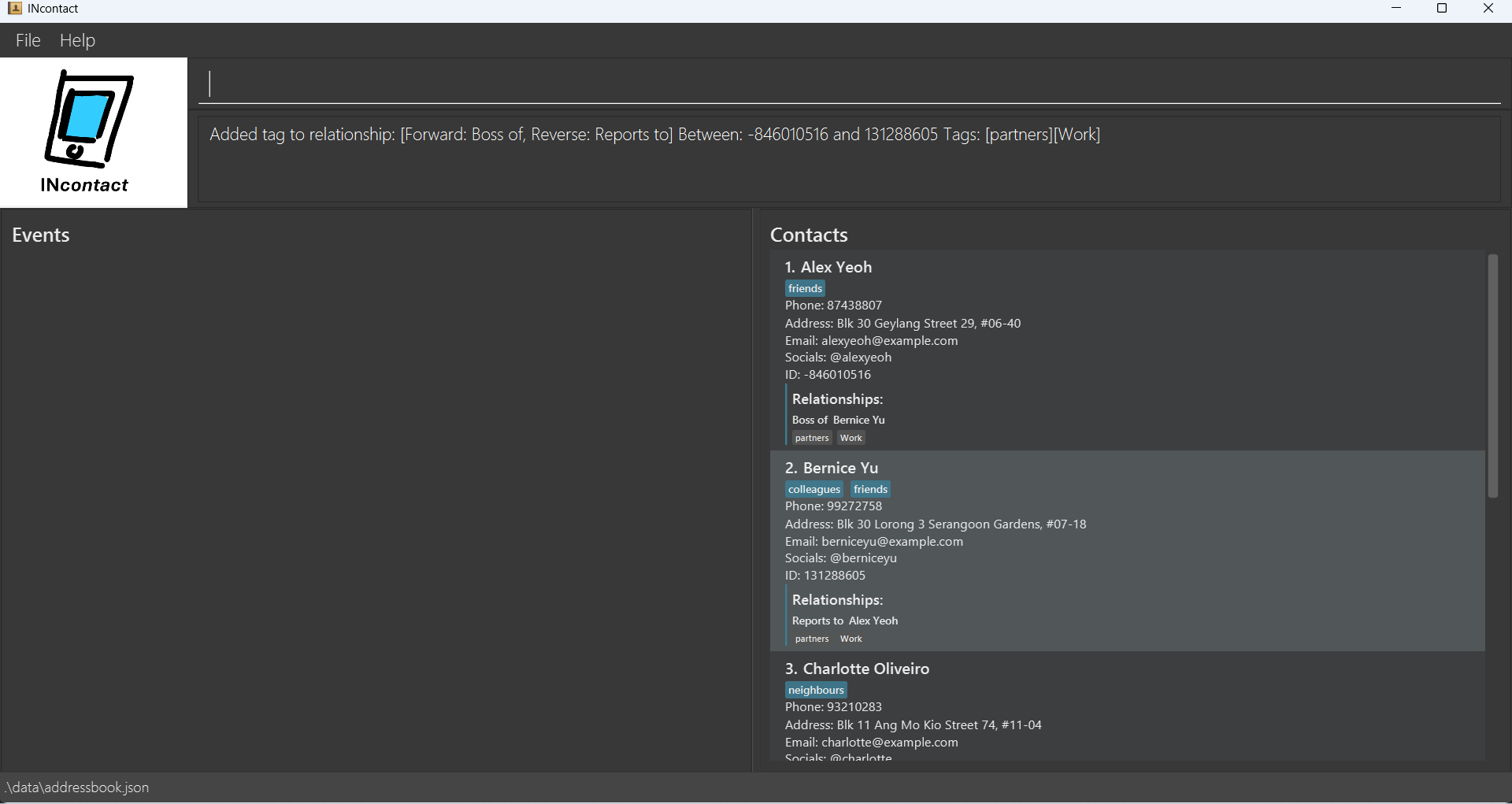
Deleting a relationship tag: deleteRelationshipTag
Deletes a relationship tag from a relationship.
Format: deleteRelationshipTag u/USER_ID_1 u/USER_ID_2 n/FORWARD_NAME_OR_REVERSE_NAME t/TAG
Example:
-
deleteRelationshipTag u/-846010516 u/131288605 n/Boss of t/partners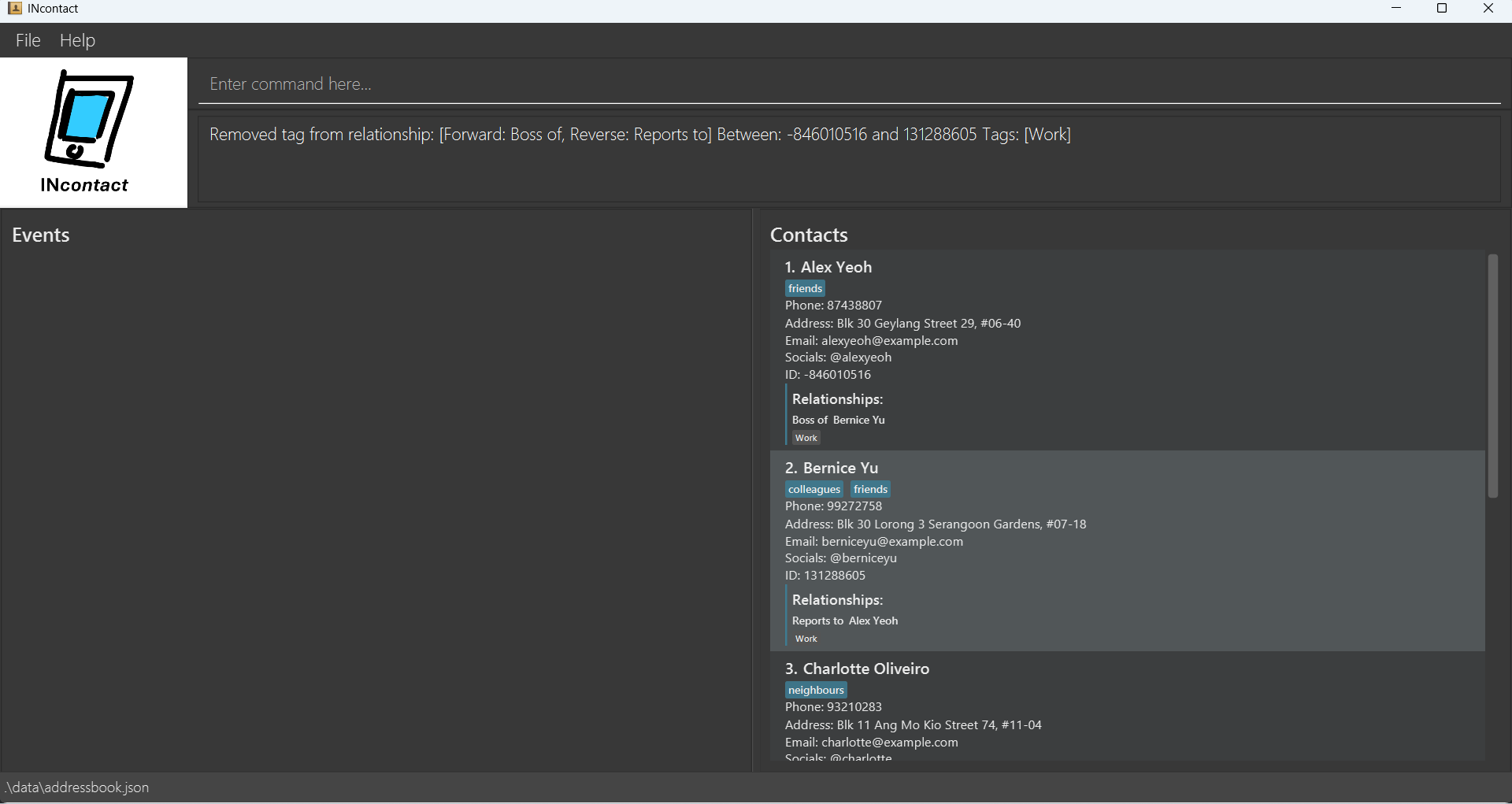
Adding an event: addEvent
Adds an event to INcontact.
Format: addEvent en/EVENT_NAME d/DATE [l/LOCATION] [desc/DESCRIPTION] [t/TAG]... [c/CONTACT_NAME]...
Example:
addEvent en/Annual Investor Meetup d/2025-03-15 l/Singapore desc/Networking session for investors t/Finance c/Alex Yeoh c/Bernice Yu-
addEvent en/Tech Conference d/2025-06-02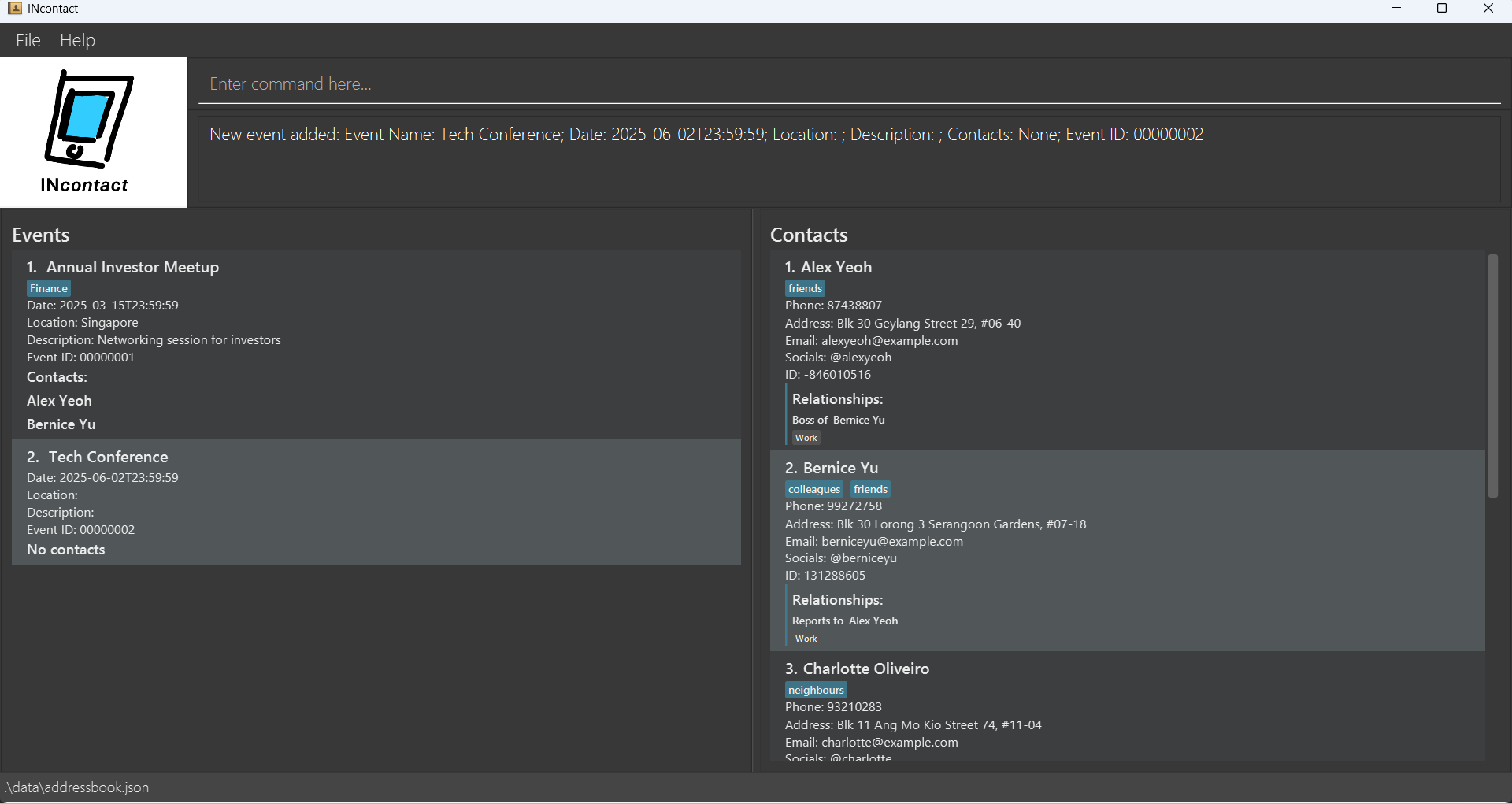
Deleting an event: deleteEvent
Deletes an event from INcontact.
Format: deleteEvent u/EVENT_ID
Example:
-
deleteEvent u/00000001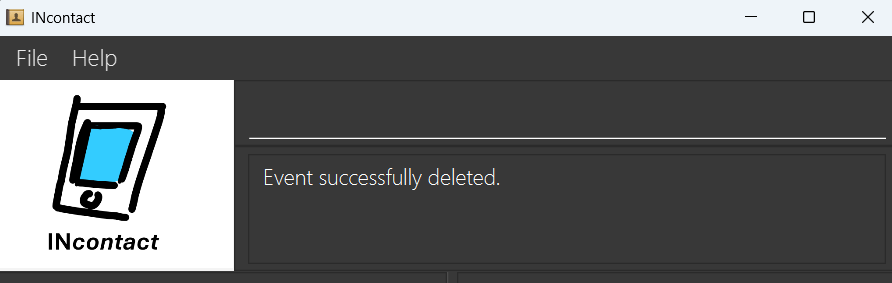
Updating an event description: updateEventDesc
Updates the description of an event.
Format: updateEventDesc INDEX desc/NEW_DESCRIPTION
Example:
-
updateEventDesc 1 desc/Good Time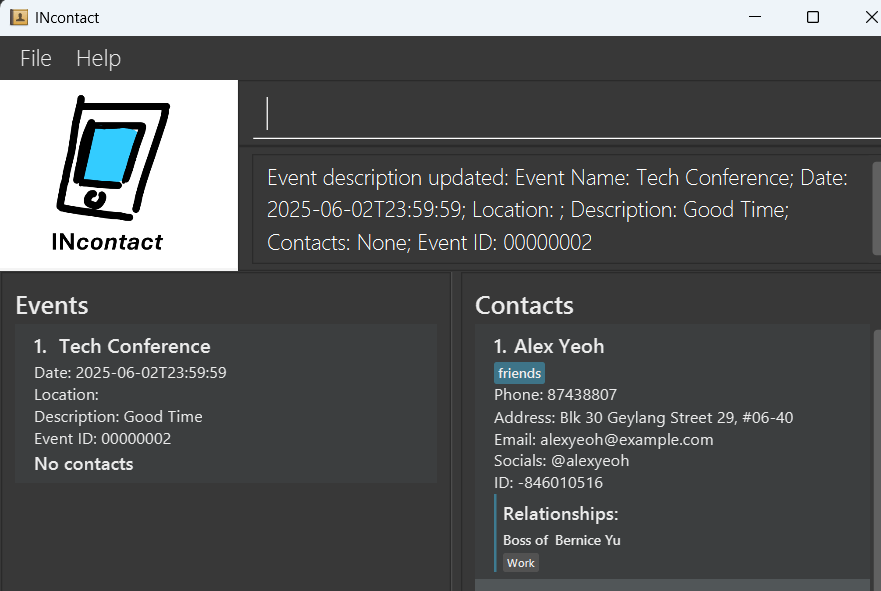
Updating an event time: updateEventDate
Updates the date of an event.
Format:
updateEventDate INDEX d/NEW_DATE
Example:
-
updateEventDate 1 d/2025-03-15T09:30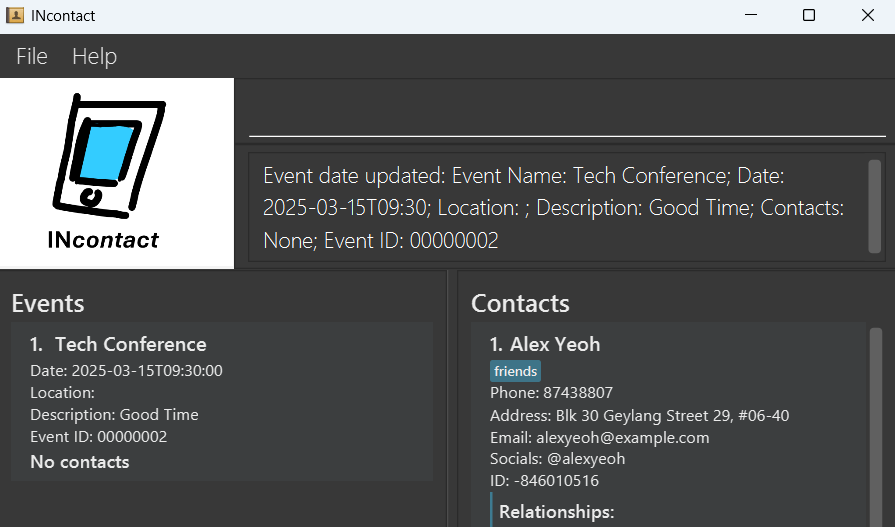 —
—
Updating an event location:
updateEventLoc
Updates the location of an event.
Format:
updateEventLoc INDEX l/NEW_LOCATION
Example:
-
updateEventLoc 1 l/Conference Room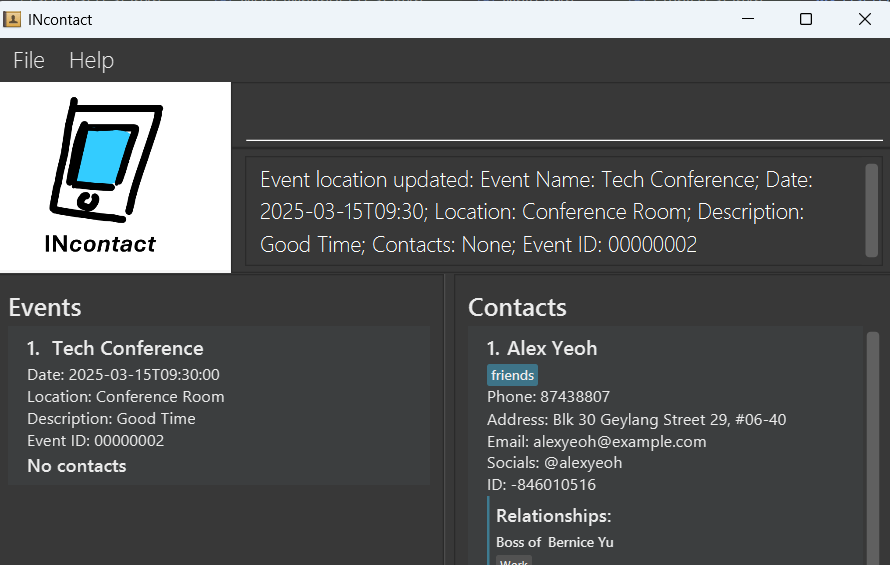
Adding an event tag: addEventTag
Adds a tag to an event.
Format: addEventTag INDEX t/TAG_NAME
Tip:
System only registers one tag, adding multiple, it will take the last one, e.g. “addEventTag 1 t/Finance t/Meeting” would only register the “Meeting” tag.
Example:
-
addEventTag 1 t/Finance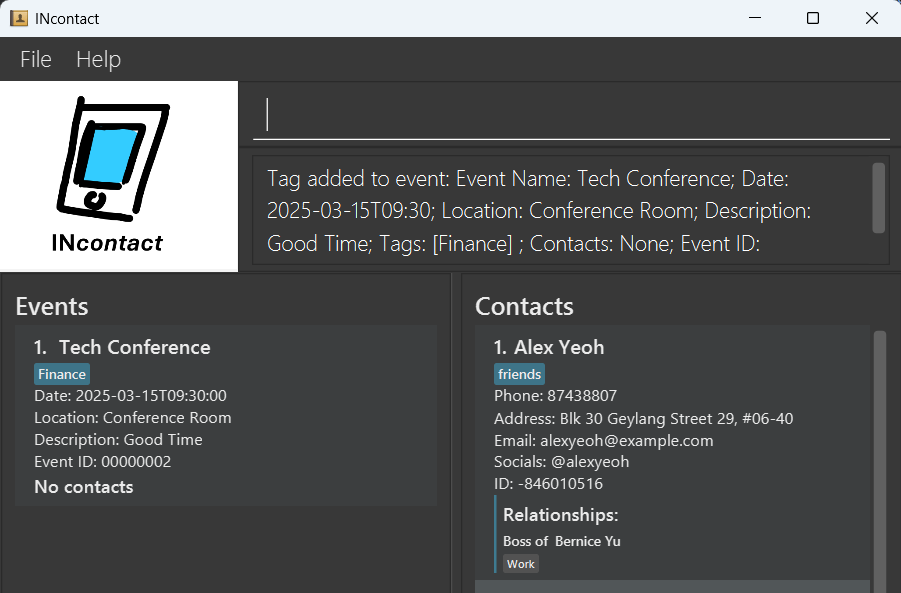
Deleting an event tag: deleteEventTag
Deletes a tag from an event.
Tip:
System only registers one tag, deleting multiple, it will take the last one, e.g. “deleteEventTag 1 t/Finance t/Meeting” would only register the “Meeting” tag.
Format: deleteEventTag INDEX t/TAG_NAME
Example:
-
deleteEventTag 1 t/Finance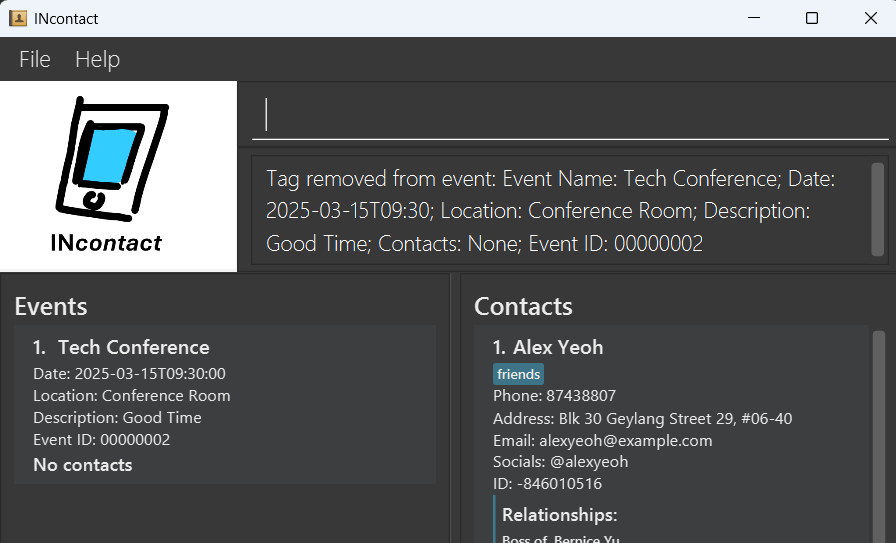
Adding an event contact: addEventContact
Adds a contact to an event.
Format: addEventContact INDEX c/CONTACT_NAME
Tip:
System only registers one contact, adding multiple, it will take the last one, e.g. “addEventContact 1 c/Alex Yeoh c/Bernice Yu” would only register the “Bernice Yu” contact.
Example:
-
addEventContact 1 c/Alex Yeoh
Deleting an event contact: deleteEventContact
Deletes a contact from an event.
Tip:
System only registers one contact, deleting multiple, it will take the last one, e.g. “deleteEventContact 1 c/Alex Yeoh c/Bernice Yu” would only register the “Bernice Yu” contact.
Format: deleteEventContact INDEX c/CONTACT_NAME
Example:
-
deleteEventContact 1 c/Alex Yeoh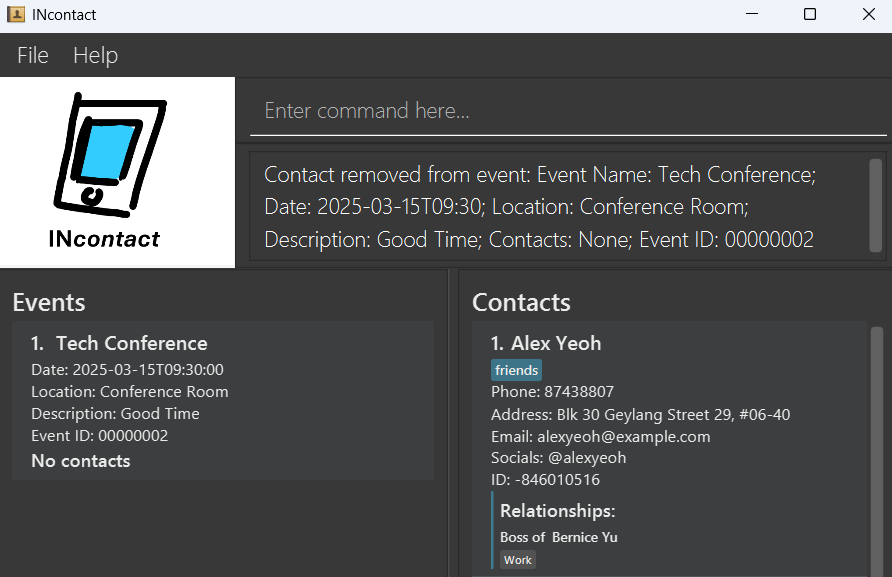
Locating persons by name: findName
Finds persons whose names contain any of the given keywords as a substring.
Format: findName KEYWORD [MORE_KEYWORDS]
- The search is case-insensitive. e.g.,
hanswill matchHans - Only the name field is searched.
- Persons matching at least one keyword will be returned (i.e.,
ORsearch). e.g.,Han Yawill returnHans Gruber,Bo Yang
Example:
-
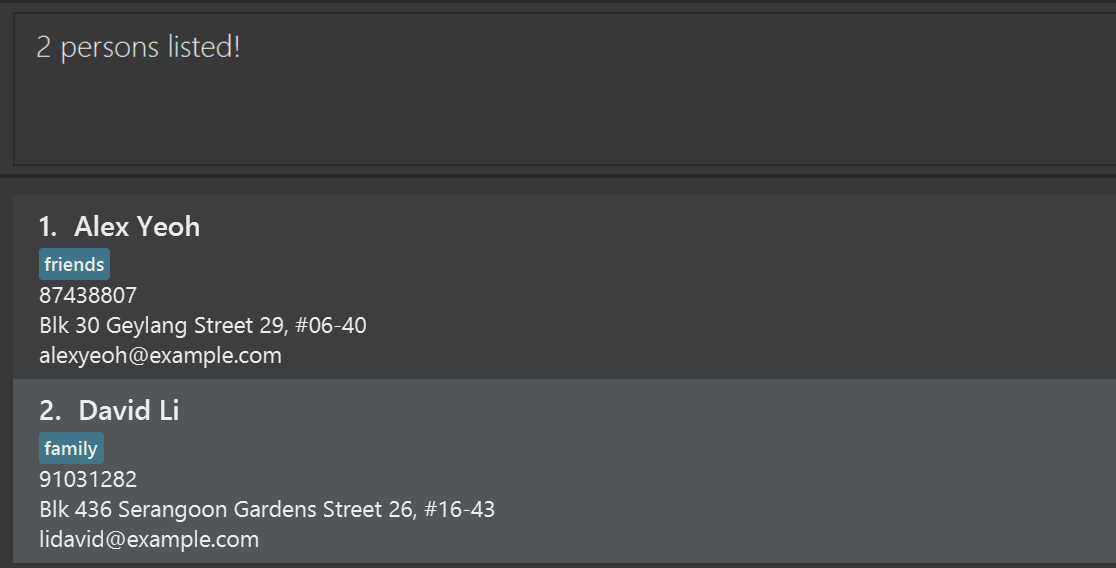
findName JohreturnsjohnandJohn Doe -
findName ale davidreturnsAlex Yeoh,David Li
Locating persons by phone: findPhone
Finds persons whose phone numbers contain any of the given keywords as a substring.
Format: findPhone KEYWORD [MORE_KEYWORDS]
- Only the phone number field is searched.
Example:
-
findPhone 874 758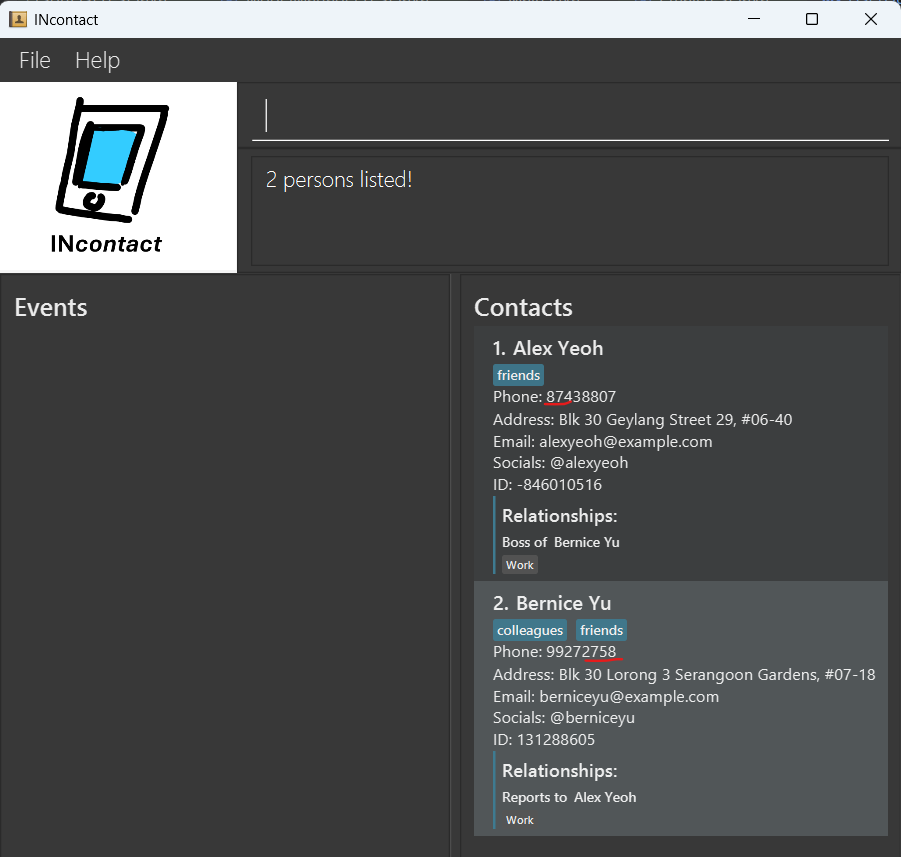
Locating persons by email: findEmail
Finds persons whose emails contain any of the given keywords as a substring.
Format: findEmail KEYWORD [MORE_KEYWORDS]
- Only the email field is searched.
Example:
-
findEmail alexyeoh@example.com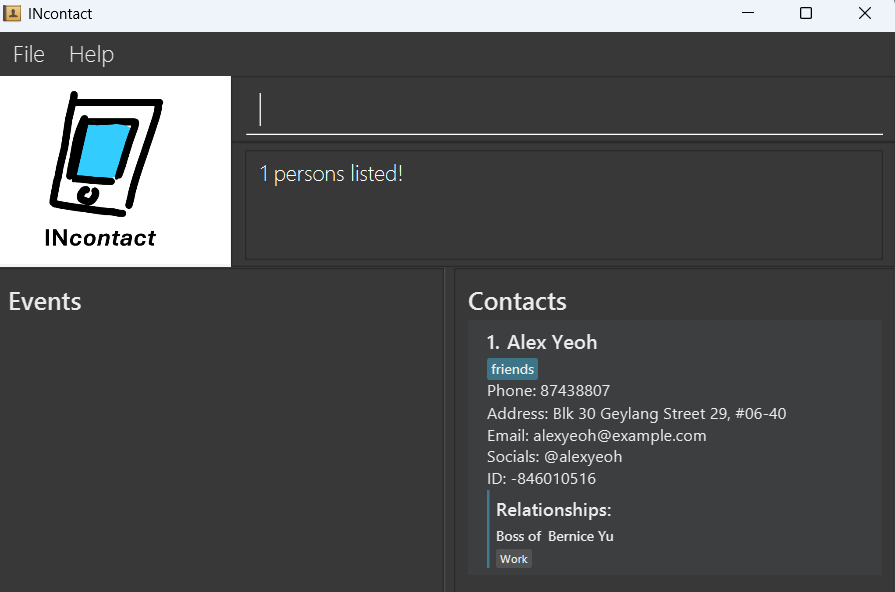
Locating persons by address: findAddress
Finds persons whose addresses contain any of the given keywords as a substring.
Format: findAddress KEYWORD [MORE_KEYWORDS]
- Only the address field is searched.
Example:
-
findAddress lorong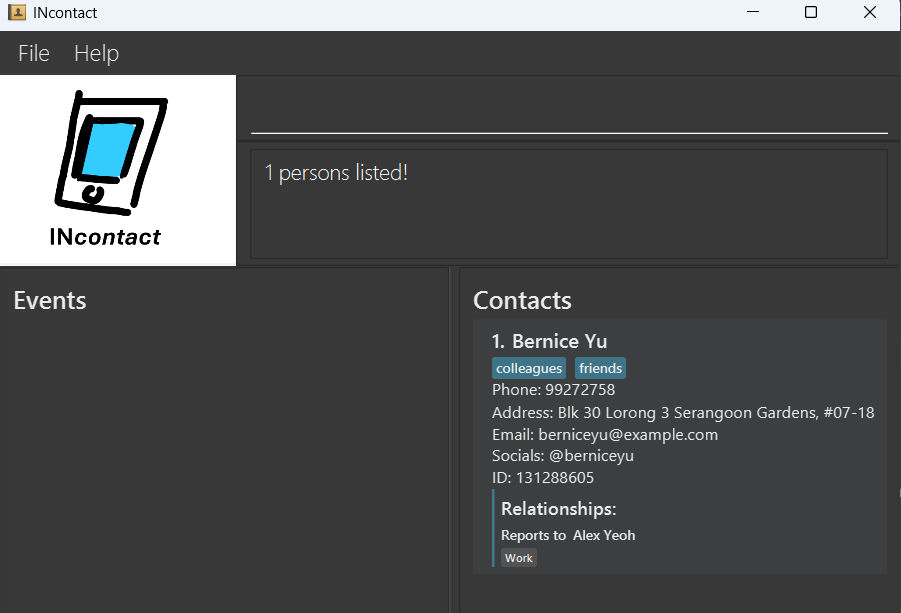
Locating persons by social: findSocial
Finds persons whose social media handles contain any of the given keywords as a substring.
Format: findSocial KEYWORD [MORE_KEYWORDS]
- Only the social media handle field is searched.
Example:
-
findSocial alex
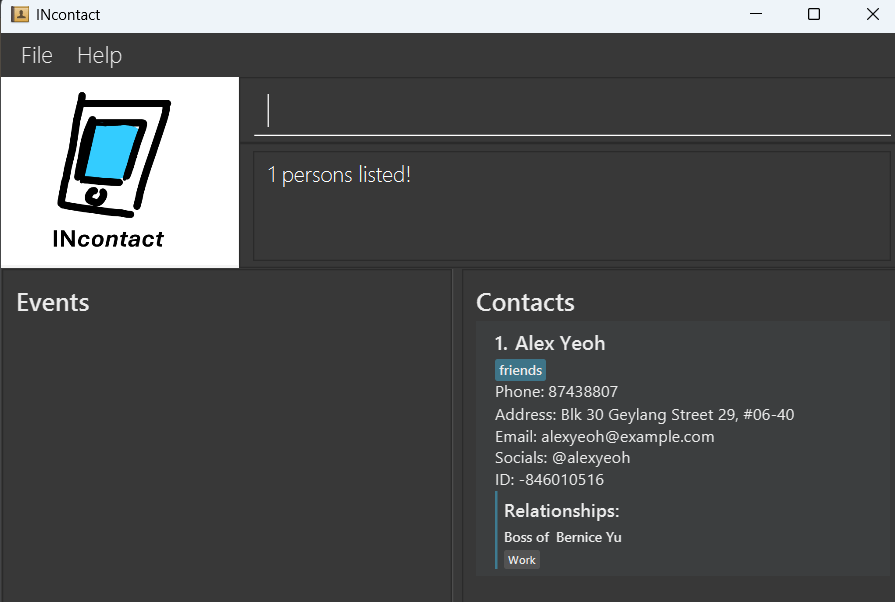
Locating persons by relationship: findRelationship
Finds persons involved in relationships where their role in any relationship contains any of the given keywords as a substring.
Format: findRelationship KEYWORD [MORE_KEYWORDS]
- Only the role names in relationships are searched.
- The search is case-insensitive.
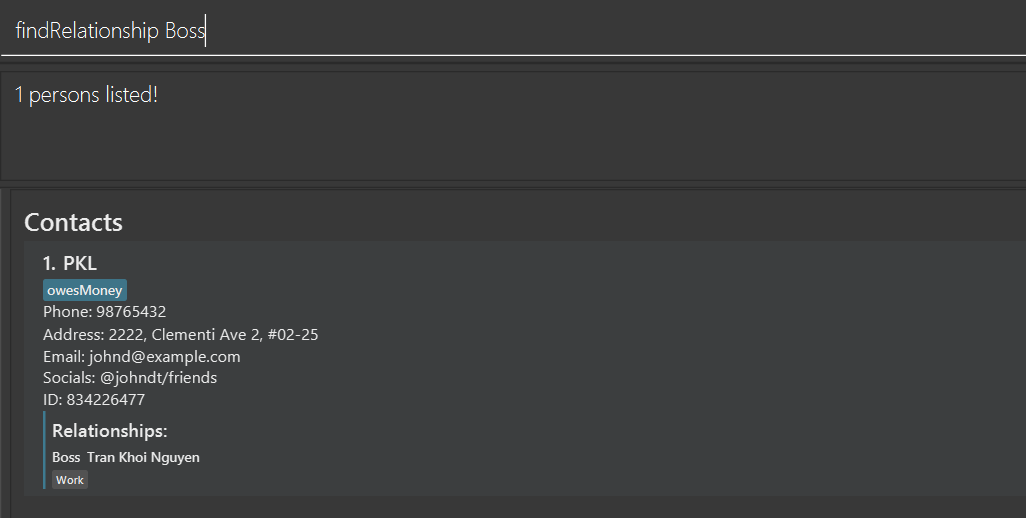
- Important: The command returns only the person whose role in the relationship contains the search keyword.
- For example, if Person A has a relationship “Boss” with Person B whose relationship is “Employee”, searching for
findRelationship Bosswill return only Person A, because their role contains the keyword “Boss”.
Examples:
-
findRelationship family friendreturns all persons where their role in any relationship containing “family” or “friend” as substrings.
Locating persons by tag: findTag
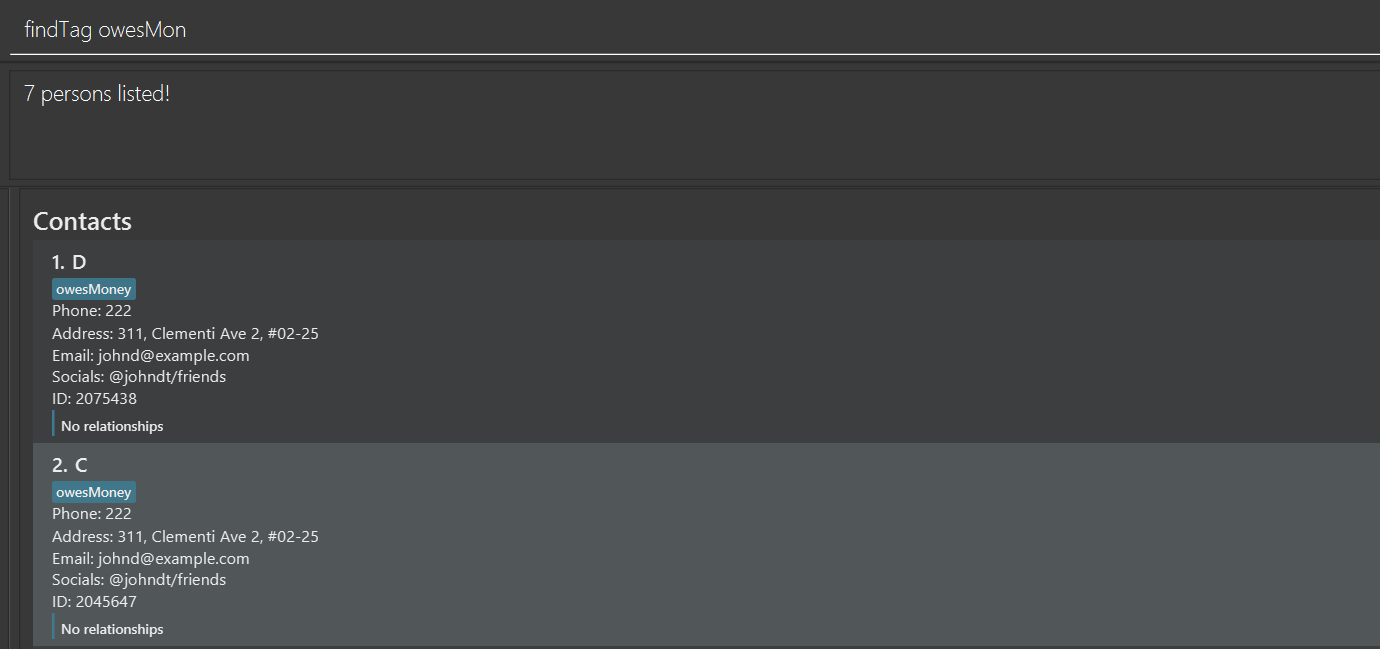
Finds persons whose tags contain any of the given keywords as a substring.
Format: findTag KEYWORD [MORE_KEYWORDS]
- Only the tags field is searched.
- The search is case-insensitive.
Example:
-
findTag colleague important
Sorting the Address Book: sort
Sorts the address book by one or more fields.
Format: sort [-r] FIELD [MORE_FIELDS]
- The
-rflag reverses the sorting order. - You can sort by multiple fields (e.g., name, phone, email, address, tags).
- Only the specified fields will be considered in the sort.
- Sorting is performed lexicographically by the first field first, then by the second field for entries with identical first field values, and so on.
Examples:
-
sort -r name phonesorts the address book by name and phone in reverse order. -
sort emailsorts the address book by email. -
sort phone namesorts the address book by phone and name.

Re-executing Commands: redo
Re-executes a command from your command history.
Format: redo COMMAND_NUMBER
- The
COMMAND_NUMBERmust be between 1 and 10, indicating the position of the command in the history. - This command allows you to quickly redo previous actions.
- Command history is session-based and will be cleared when the application is terminated.
Examples:
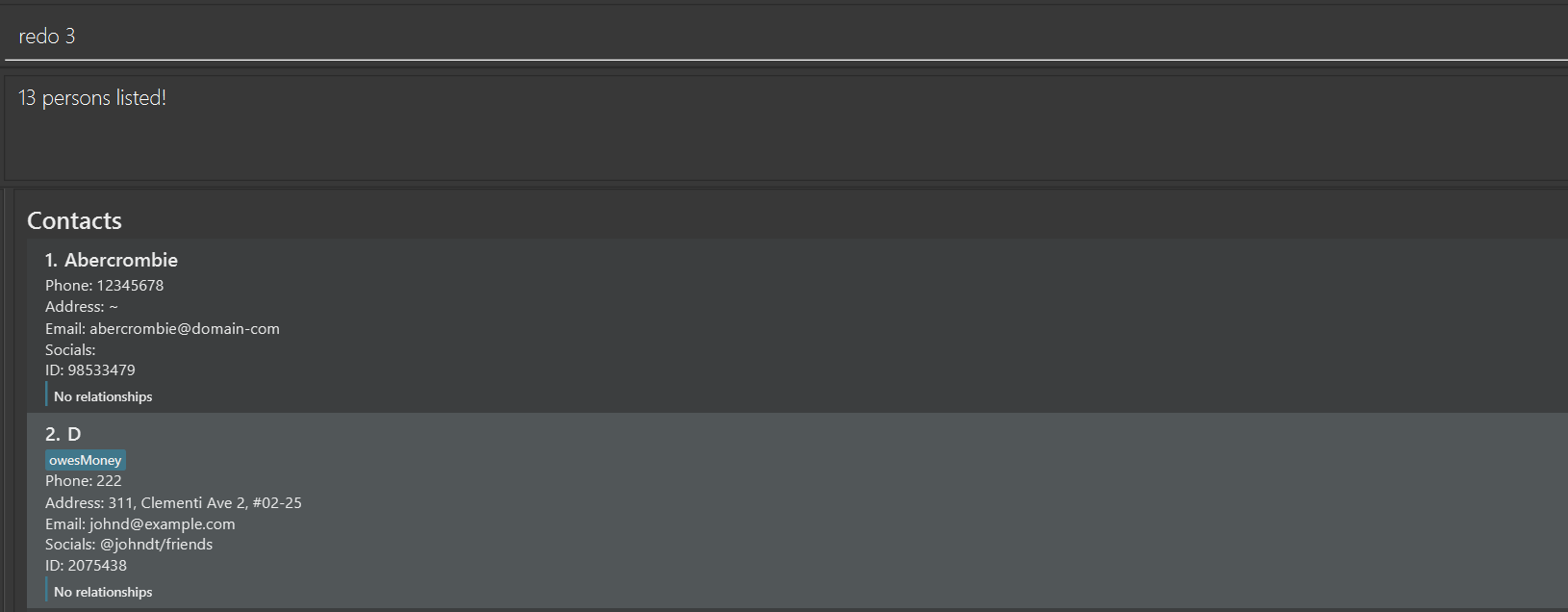
-
redo 3re-executes the third last command. - In the picture, the third last command is
sort phone
Listing the Command History: redoList
Lists your command history from the current session.
Format: redoList
- This command displays a numbered list of successfully executed commands from your current session.
- Only stores up to 10 most recent commands.
- Command history is reset when you close the application.
-
redocommands themselves do not appear in this history.
Example:
-
redoListlists the most recent commands executed (up to 10)
Exiting the program : exit
Exits the program.
Format: exit
Example:
exit
Saving the data
INcontact data are saved in the hard disk automatically after any command that changes the data. There is no need to save manually.
Editing the data file
INcontact data are saved automatically as a JSON file [JAR file location]/data/addressbook.json. Advanced users are welcome to update data directly by editing that data file.
 Caution:
If your changes to the data file makes its format invalid, INcontact will discard all data and start with an empty data file at the next run. Hence, it is recommended to take a backup of the file before editing it.
Caution:
If your changes to the data file makes its format invalid, INcontact will discard all data and start with an empty data file at the next run. Hence, it is recommended to take a backup of the file before editing it.Furthermore, certain edits can cause the INcontact to behave in unexpected ways (e.g., if a value entered is outside of the acceptable range). Therefore, edit the data file only if you are confident that you can update it correctly.
Find and Sort Interaction
When using find commands (like findName, findPhone, etc.) followed by sort commands:
- Find commands display a filtered subset of the address book based on your search criteria
- Sort commands affect the entire address book, but only the previously filtered results will be displayed
FAQ
Q: How do I transfer my data to another computer?
A: Install the app in the other computer and overwrite the empty data file it creates with the file that contains the data of your previous INcontact home folder.
Known issues
-
When using multiple screens, if you move the application to a secondary screen, and later switch to using only the primary screen, the GUI will open off-screen. The remedy is to delete the
preferences.jsonfile created by the application before running the application again. -
If you minimize the Help Window and then run the
helpcommand (or use theHelpmenu, or the keyboard shortcutF1) again, the original Help Window will remain minimized, and no new Help Window will appear. The remedy is to manually restore the minimized Help Window. -
Character Encoding for Find Commands: All find commands (
findName,findPhone, etc.) work best with standard English alphabet characters. When using special characters or non-English alphabets (such as Turkish, Chinese, etc.), search results may be unexpected. Searching for names with special characters might return more or fewer results than expected. For best results, use standard English characters in your contact information. - Character Encoding for Sort Commands: The sort functionality works best with standard English alphabet characters. When sorting entries containing special characters or non-English alphabets, the sorting order may not follow expected language-specific rules. For predictable sorting results, use standard English characters in your contact information.
-
Uncommon Redo Implementation: The
redocommand in this application differs from common redo implementations. Rather than reversing an undo action, it re-executes a specific command from your history (e.g.,redo 3re-executes the third last command from the history list). Should useredoListto view your command history (up to 10 most recent commands) before using theredocommand. -
UI Feedback with redoList Command: When executing the
redoListcommand, the command input bar is not cleared and turns red (similar to when there is an error). This is expected behavior asredoListreturns command history information through exceptions rather than standard output. -
Relationships aren’t preserved after contacts are edited: When a contact is edited with the
editcommand, existing relationships are not preserved properly.
Planned enhancements
- Use a simpler specifier for relationships: Relationships currently work via specifying unique User IDs, since INcontact has a very permissive policy regarding similar or duplicate contact details. In future implementations, we will allow for specifying relationships by GUI number, as well as multistep selection (i.e. INcontact finds all matching users, and asks you to choose the specific user).
-
Improve character encoding for Find Commands: Enhance all find commands (
findName,findPhone, etc.) to work better with special characters and non-English alphabets (such as Turkish, Chinese, etc.) to provide more predictable search results when using special characters. - Improve character encoding for Sort Commands: Enhance the sort functionality to better handle special characters and non-English alphabets, ensuring that sorting order follows expected language-specific rules regardless of character set.
-
Enhance Redo command functionality: Modify the
redocommand to align with common redo implementations in other applications, focusing on reversing undo actions rather than re-executing specific commands from history. -
Improve UI feedback for redoList Command: Update the UI behavior when executing the
redoListcommand so the command input bar is cleared properly and doesn’t display as an error state. Implement proper command output handling instead of using exceptions for history information.
Command summary
| Action | Format, Examples |
|---|---|
| Add |
add n/NAME [p/PHONE_NUMBER] [e/EMAIL] [a/ADDRESS] [s/SOCIAL]… [t/TAG]… e.g., add n/James Ho p/22224444 e/jamesho@example.com a/123, Clementi Rd, 1234665 s/@social1 s/social2 /t investor t/friend t/colleague
|
| Clear |
cleare.g., clear
|
| Delete |
delete INDEXe.g., delete 3
|
| Edit |
edit INDEX [n/NAME] [p/PHONE_NUMBER] [e/EMAIL] [a/ADDRESS] [s/SOCIAL]... [t/TAG]...e.g., edit 2 n/James Lee e/jameslee@example.com
|
| List |
liste.g., list
|
| Add Relationship |
addRelationship u/USER_ID_1 u/USER_ID_2 fn/FORWARD_NAME rn/REVERSE_NAME [t/TAG]...e.g., addRelationship u/-846010516 u/131288605 fn/Boss of rn/Reports to t/Work
|
| Delete Relationship | deleteRelationship u/USER_ID_1 u/USER_ID_2 n/FORWARD_NAME_OR_REVERSE_NAME |
| Add Relationship Tag | addRelationshipTag u/USER_ID_1 u/USER_ID_2 n/FORWARD_NAME_OR_REVERSE_NAME t/TAG |
| Delete Relationship Tag | deleteRelationshipTag u/12345678 u/87654321 n/Business Partner t/Important |
| Add Event | addEvent en/EVENT_NAME d/DATE [l/LOCATION] [desc/DESCRIPTION] [t/TAG]... [c/CONTACT_NAME]... |
| Delete Event | deleteEvent u/EVENT_ID |
| Update Event Description | updateEventDesc INDEX desc/NEW_DESCRIPTION |
| Update Event Location | updateEventLoc INDEX l/NEW_LOCATION |
| Update Event Time | updateEventDate INDEX d/NEW_DATE |
| Add Event Tag | addEventTag INDEX t/TAG_NAME |
| Delete Event Tag | deleteEventTag INDEX t/TAG_NAME |
| Add Event Contact | addEventContact INDEX c/CONTACT_NAME |
| Delete Event Contact | deleteEventContact INDEX c/CONTACT_NAME |
| Help | help |
| Find by Name |
findName KEYWORD [MORE_KEYWORDS]e.g., findName James Jake
|
| Find by Phone | findPhone KEYWORD [MORE_KEYWORDS] |
| Find by Email | findEmail KEYWORD [MORE_KEYWORDS] |
| Find by Address | findAddress KEYWORD [MORE_KEYWORDS] |
| Find by Social | findSocial KEYWORD [MORE_KEYWORDS] |
| Find by Tag | findTag KEYWORD [MORE_KEYWORDS] |
| Find by Relationship | findRelationship KEYWORD [MORE_KEYWORDS] |
| Sort by Fields |
sort [-r] FIELD [MORE_FIELDS]e.g., sort -r name tag
|
| Redo |
redo COMMAND_NUMBERe.g., redo 3
|
| Command History for Redo | redoList |